# Overview

We provide enabling digital infrastructure for wayfinding through two distinct yet tightly integrated applications - StoryKeeper and the WayFinder Platform

StoryKeeper acts like a personal digital journal for creating stories, capturing and embedding media, deciding where stories are published and who can view them.&#x20;

The WayFinder Platform, and specifically a "canvas", is where stories are published and shared with other people. A canvas is a dynamic and collaborative interface for viewing, visualising, connecting and mapping of stories and other content.

<figure><img src="https://4069604972-files.gitbook.io/~/files/v0/b/gitbook-x-prod.appspot.com/o/spaces%2FLLZ7p94OHguiKBpQrfag%2Fuploads%2FB4q5ii8euevlcs22OcKK%2Fsk-wfp-publish.gif?alt=media&amp;token=ec69c11c-0a2c-411f-89d3-8c96194028fc" alt=""><figcaption><p>Stories and accompanying media are published from StoryKeeper to a "canvas" on The WayFinder Platform</p></figcaption></figure>

StoryKeeper is designed for **quick** capture of stories anywhere, anytime across any device - phone, tablet, laptop - and will seamlessly sync across those devices.

The WayFinder Platform is designed for **slow** "sensemaking" of stories and other content on a canvas, and suited to larger screens like laptops and above (and quiet places!).

The short video below succinctly explains how all this fits into an "action learning loop" (we recommend you [check out our blog](https://www.wayfinders.network/tag/concepts/) for more background on this and other key concepts)

{% embed url="<https://www.youtube.com/watch?v=osqiY-OWxko>" %}


# StoryKeeper

You can think about and use StoryKeeper in a number of ways for content creation...the original intent for the app was for digital field notes/journalling, and this remains prominent, alongside many other powerful use-cases.&#x20;

It enables capturing and uploading of a range of media (text, audio, images, video, hand drawings, screen recordings), sharing via the [WayFinder Platform](/apps-and-tools/wayfinder-platform), and setting granular access/viewing permissions

It also borrows concepts and conventions from social (media) platforms - you can publish your profile, @mention other people, use #hashtags, compose and publish micro or long-form content - the choice is yours.


# Web App & Install

StoryKeeper is a "progressive web app" (PWA), meaning it is accessible through a web browser AND can be "installed" on your device without going through app stores etc.

StoryKeeper will function in most web browsers on modern mobiles, tablets and laptops/desktops. &#x20;

For guidance on how to "install" StoryKeeper, such that it appears as an app on your home screen or desktop, follow [this link](https://au.pcmag.com/software-services/89925/pwas-turn-websites-into-apps-heres-how) (scroll down to the *"How Do You Install a Progressive Web App?"* section and find the operating system and browser that you use)

>


# User Accounts

You **cannot** create an account directly in StoryKeeper, instead we do this for you and will require your full name and email address. You can also provide us a password or we can set a default password (which you can subsequently change at anytime through the login screen).

Once we have created your account you will receive an anonymous email with your username and password (you might need to check your spam folder!)

If you have any issues or queries about your user account get in touch with us <info@wayfinders.network>


# Create a Story

Once you login you will likely see the Story Manager view as depicted below\...(if not, click on your username at the top right and select 'Stories' from the drop-down menu)

<figure><img src="https://4069604972-files.gitbook.io/~/files/v0/b/gitbook-x-prod.appspot.com/o/spaces%2FLLZ7p94OHguiKBpQrfag%2Fuploads%2FHr6t9WGdMndo9O5CVdBt%2FScreen%20Shot%202024-04-07%20at%203.27.43%20pm.png?alt=media&amp;token=7faa518f-f8b8-42ff-a506-d34026f43bd1" alt="" width="386"><figcaption></figcaption></figure>

The default content type is 'story' but there are [other options](/apps-and-tools/storykeeper/create-a-story/content-types) to choose from.

All stories need a title before they can be saved or published...the details section is optional but likely useful to populate 😉.

You can use the **#hashtag** convention in your story details, which is handy for searching in StoryKeeper, but even more powerful when using a WayFinder canvas for filtering, clustering and visualising based on hashtags.

You can also use the **@mention** convention to mention other people (users), enabling filtering and clustering of stories on a WayFinder canvas based on who has been mentioned in them (filtering by your (user)name is a good way to find other people's stories that have mentioned you!)

If you paste a YouTube link into the story details it will also create a custom shortcode `[[youtube/video_id]]` - this will embed and display the video when the [story is published](/apps-and-tools/storykeeper/publish-stories) to a WayFinder canvas.

You can insert media from your [media library](/apps-and-tools/storykeeper/media-library) (if it is populated) using the blue image icon toward the top right...

<figure><img src="https://4069604972-files.gitbook.io/~/files/v0/b/gitbook-x-prod.appspot.com/o/spaces%2FLLZ7p94OHguiKBpQrfag%2Fuploads%2F8xIRamdejlovGkpCRFpp%2FScreen%20Shot%202024-04-06%20at%203.52.40%20pm.png?alt=media&amp;token=2af2d696-9e69-4481-a0ed-d75ba859613e" alt=""><figcaption><p>blue icons at top right - insert media, create and insert a hand drawing, view the markdown reference guide</p></figcaption></figure>

**NOTE: media will be inserted as a link into the story details field - it will not be displayed.**

Next to the image icon is an easel icon which will open a space for creating a digital sketch (drawing) and inserting into your story (the functionality is **very** crude at the moment)

The final blue icon is for viewing a [reference guide](https://docs.kumu.io/guides/profiles/markdown) for "markdown" formatting, which is what you can use in your stories to format and render text in various ways, ie headings, bullet points, links etc.

Finally, you can save or publish your story using the green button to the right, below the story details (publishing will also automatically save it).


# Content Types

As you may have guessed from its name, when StoryKeeper was first released the only type of 'content' that could be created was a story. Whilst the concept and essence of stories are still central to the "wayfinding" [approach](https://www.wayfinders.network/blog/story-measure/), now there are other content types that can be created/assigned. This can be done through the "type" drop down menu...

<figure><img src="https://4069604972-files.gitbook.io/~/files/v0/b/gitbook-x-prod.appspot.com/o/spaces%2FLLZ7p94OHguiKBpQrfag%2Fuploads%2Fq6miXttySIexgU64IHvu%2FScreen%20Shot%202024-04-06%20at%203.21.07%20pm.png?alt=media&amp;token=e990b6ae-32c2-491e-bbba-440a79a957b2" alt="" width="435"><figcaption></figcaption></figure>

The default content type is still a 'story', however other options for all accounts are 'my profile', 'reflection', 'question' and 'resource'. Additional content types can also be added to accounts upon request - in the screenshot above, these are 'idea' and 'experiment'

Most content types will have a default icon that is displayed if/when the content is published to a WayFinder canvas. This will be overridden if you [set a cover image](/apps-and-tools/storykeeper/publish-stories#publishing-options) (for example, a headshot of yourself for the 'profile' content type)

### What exactly do we mean by 'content type'???

In case there is a need for clarification, note that the use of the term "content type" is not related to the type of media being used (text, audio, video, image etc), but instead an expectation/guide for what is being conveyed.&#x20;

For example a \[story] may contain *"a descriptive account of incidents or events"* and a \[reflection] *"an opinion formed or a remark made after careful thought".*&#x20;

A \[profile] would be expected to have information about a person, a \[question] would pose a question (no surprise there!), and a \[resource] could be a link to, or section of, a research paper or user guide.

See the latter part of this [blog post](https://www.wayfinders.network/blog/exploring-wayfinder-canvas/) for why content types (and the associated icons on a WayFinder canvas) are important.

### Templates

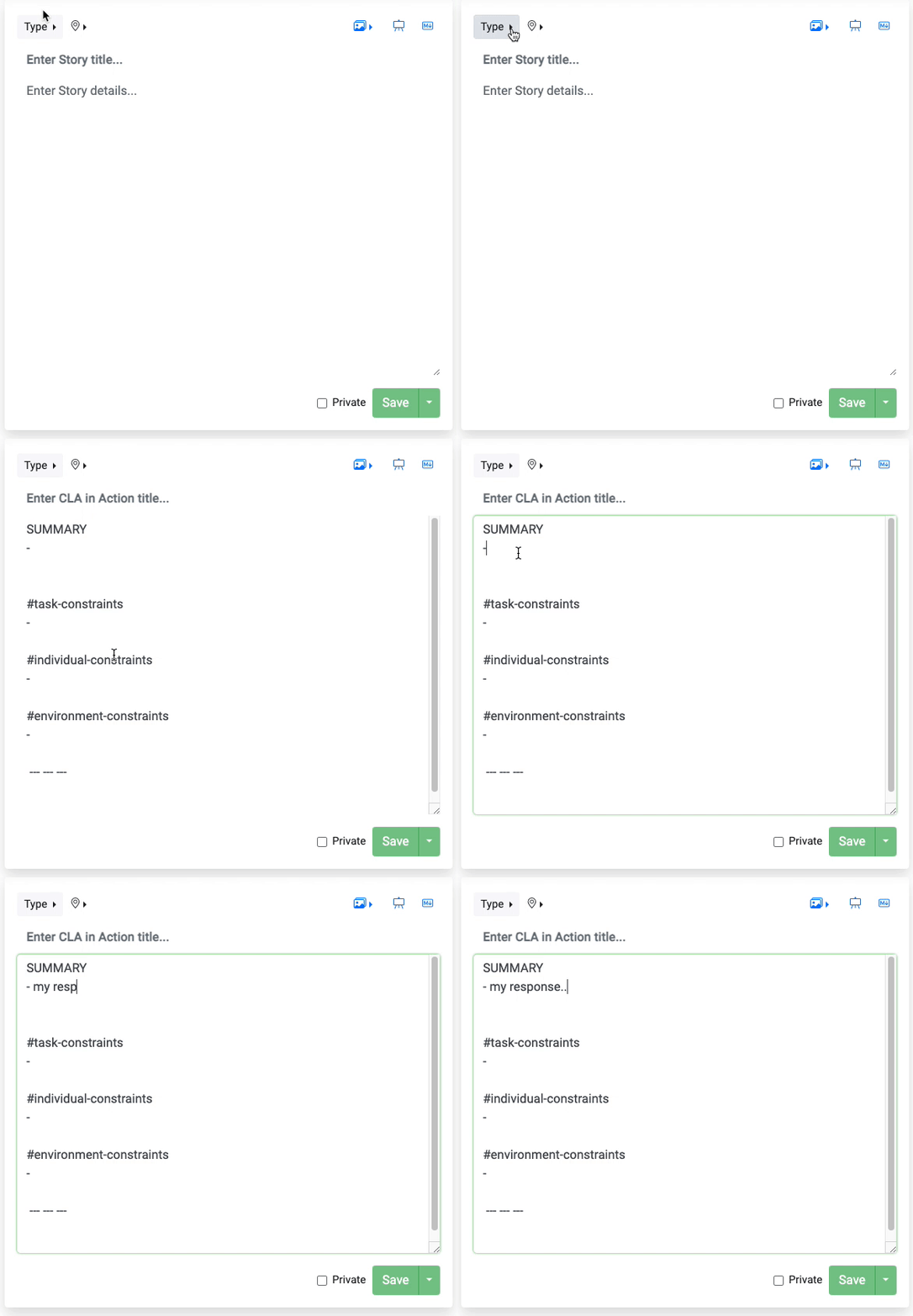
Custom content types can have "template" text that pre-populates the details text field when that content type is selected. Here is what that looks like when the custom content type \[CLA in Action] is selected...

<figure><img src="https://i.gyazo.com/15d2537739e166ae8351b52bd29969f7.gif" alt=""><figcaption></figcaption></figure>

This is a really useful way to structure and guide what is entered, rather than having it completely open-ended. For example, the template text could be a series of questions/prompts that the user can respond to. In the example above, the template text contains hashtags that also act as headings.&#x20;

The user is able to edit/delete anything from the template text - it is just a starting point. Also note that the template text will not overwrite any text that has already been entered into the details field - it will be added before the existing text, with a '---' separator delineating between the template text and the existing text.


# Geo-Location

You can set the geographical location of your story using the location icon next to the 'type' menu at the top left above the story title...

<figure><img src="https://4069604972-files.gitbook.io/~/files/v0/b/gitbook-x-prod.appspot.com/o/spaces%2FLLZ7p94OHguiKBpQrfag%2Fuploads%2FGEj7tikvZv2qyxZqQpsf%2FScreen%20Shot%202024-04-06%20at%204.23.19%20pm.png?alt=media&amp;token=597e14ee-1bbf-4de8-bf53-5b2639007bbf" alt=""><figcaption></figcaption></figure>

This can be in the format \[postcode, country] or for a more precise location you can enter \[latitude,longitude] coordinates (the blue "map" link will take you to google maps, where you can find these coordinates for any location you define on a google map)

This geo-location data is used when you publish to a WayFinder canvas that has a [geographic view](/apps-and-tools/wayfinder-platform/canvas-layouts/geographic-map) - your story (or other content such as your profile) will be "pinned" to that location on the map.


# Publish Stories

...or "post" as it might be called on other (social media) platforms

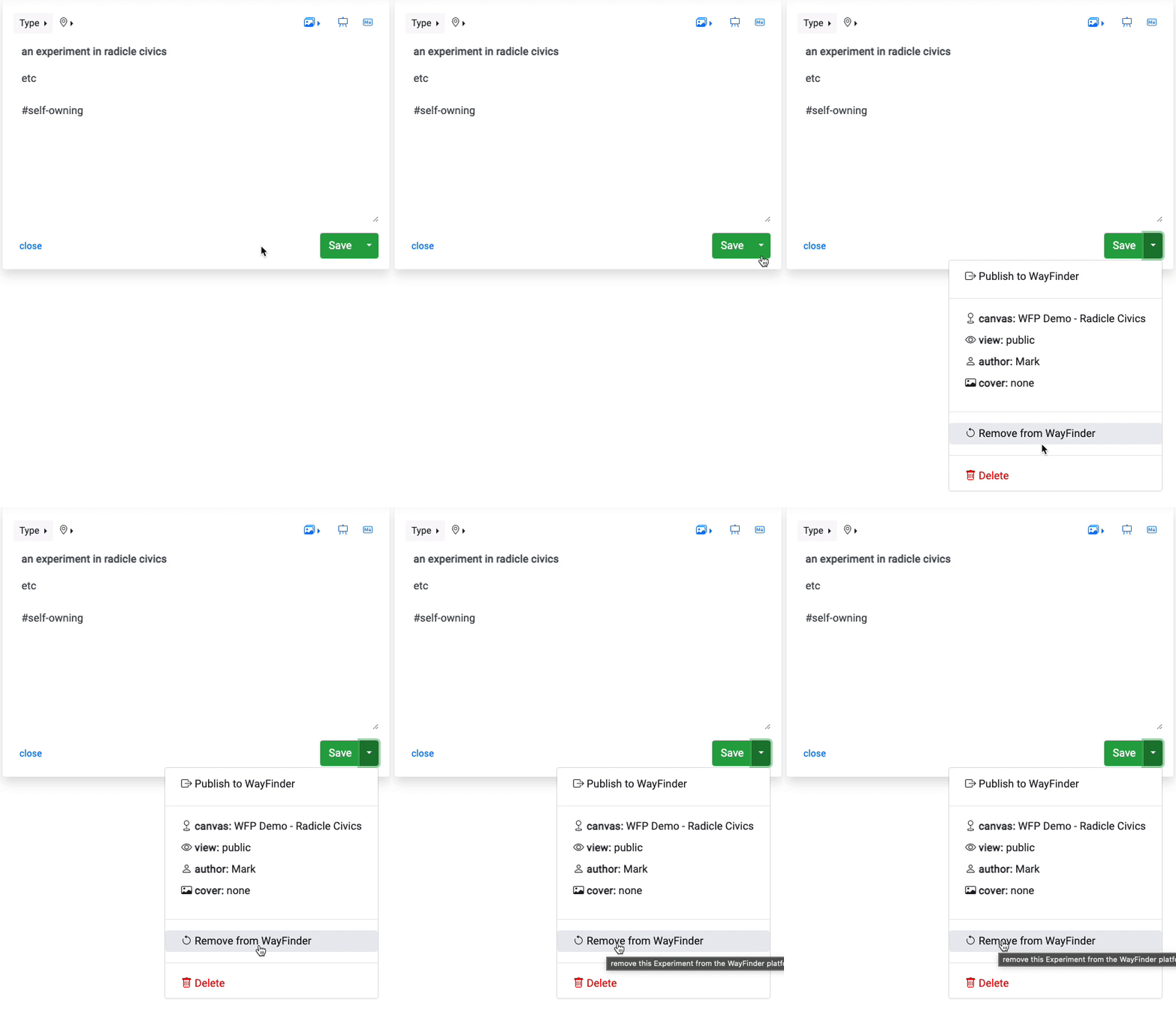
To publish a story (or other content types) to the WayFinder Platform, click the down arrow on the green 'save' button and select 'Publish to WayFinder'...

<figure><img src="https://4069604972-files.gitbook.io/~/files/v0/b/gitbook-x-prod.appspot.com/o/spaces%2FLLZ7p94OHguiKBpQrfag%2Fuploads%2FDi1X02kefs15D7D7ZPps%2FScreen%20Shot%202024-05-08%20at%204.20.47%20pm.png?alt=media&amp;token=8693ef22-aa03-4b95-a3fa-4f107ff90990" alt="" width="457"><figcaption></figcaption></figure>

### Publishing Options

You will also see publishing settings below this, which if you click on will open the popup window as shown in the screenshot below\...

<figure><img src="https://4069604972-files.gitbook.io/~/files/v0/b/gitbook-x-prod.appspot.com/o/spaces%2FLLZ7p94OHguiKBpQrfag%2Fuploads%2FVnogf76YZ3j3wik2lvim%2FScreen%20Shot%202024-05-08%20at%204.16.04%20pm.png?alt=media&amp;token=fe560f1f-28e0-41db-88fb-38c3f79bec58" alt="" width="370"><figcaption></figcaption></figure>

Here you can:

* choose whether to broadcast a [notification](/apps-and-tools/storykeeper/notifications)
* select the canvas to publish to (if you have multiple canvases available)
* assign the [viewing/access rights](/apps-and-tools/storykeeper/story-and-media-viewing-permissions)
* choose whether to publish anonymously
* set a cover image (this image will appear on the canvas rather than the default icon)
  * select an image from your media library (file size less than 1MB)
  * ...or enter the URL of an externally-hosted image (no file size limit)

NOTE: if a story is marked "private" (checkbox to the left of the green save button) then it cannot be published/shared.

### Batch Publishing

You also have an option to "batch publish" if there are multiple stories that have been updated or are new. This can be done by clicking on the "..." above your story list on the right hand side... (the number in the blue circle tells you how many stories will be published - in the example below, it is 2)

<figure><img src="https://4069604972-files.gitbook.io/~/files/v0/b/gitbook-x-prod.appspot.com/o/spaces%2FLLZ7p94OHguiKBpQrfag%2Fuploads%2FcrLyDpPALmmySaJFx3u4%2FScreen%20Shot%202024-04-06%20at%203.11.19%20pm.png?alt=media&amp;token=6ab62f2d-092e-44c7-96e1-85a2d0f5917e" alt="" width="446"><figcaption></figcaption></figure>

Note that you will see a blue "+" icon next to stories in your "My Stories" list that are still to be added to a WayFinder canvas (ie, haven't yet been published), and a blue "u" icon when a story has been updated since last being published and requires re-publishing.

### Un-Publishing

To remove content that has previously been published to a WayFinder canvas:

1. select the story/content from the "my stories" list
2. click the down arrow on the green save button
3. from the drop-down menu select "Remove from WayFinder"
4. After a few seconds you should see a message saying the content has been successfully removed

The next time you load/refresh the WayFinder canvas you will see the content is no longer displayed.

<figure><img src="https://i.gyazo.com/9ebc82c986b95a9838b2afbab583470a.gif" alt="" width="375"><figcaption></figcaption></figure>


# Export Stories

At any time you can export **all** your stories to a csv file...this option is found under the same drop-down menu as when [batch publishing](/apps-and-tools/storykeeper/publish-stories#batch-publishing).

<figure><img src="https://4069604972-files.gitbook.io/~/files/v0/b/gitbook-x-prod.appspot.com/o/spaces%2FLLZ7p94OHguiKBpQrfag%2Fuploads%2FcrLyDpPALmmySaJFx3u4%2FScreen%20Shot%202024-04-06%20at%203.11.19%20pm.png?alt=media&amp;token=6ab62f2d-092e-44c7-96e1-85a2d0f5917e" alt="" width="446"><figcaption></figcaption></figure>


# Media Library

By clicking on your username at the top right of the StoryKeeper app, you will activate a drop-down menu with "Media" as the 2nd menu item....click on that to go to your media library.

<figure><img src="https://4069604972-files.gitbook.io/~/files/v0/b/gitbook-x-prod.appspot.com/o/spaces%2FLLZ7p94OHguiKBpQrfag%2Fuploads%2FHXB10BJ2jwOKWRWjatw5%2FScreen%20Shot%202024-04-06%20at%205.37.34%20pm.png?alt=media&amp;token=04729072-29d4-4b0a-9743-0827d9b023a4" alt="" width="563"><figcaption></figcaption></figure>

In your media library you have the option to upload (or in some cases, capture/record) images, audio and video files <mark style="color:green;">**up to 100MB in size**</mark>.

All your media for the currently selected [project/community](/apps-and-tools/storykeeper/projects-communities) is listed under "My Media" and can be selected at any time to:

* view the media
* edit the name of the media (click on the text or pencil icon to edit)
  * note that you still need to save the media (green button) for the edited name to take effect
* view and edit the media description (click on the text card icon)
  * note that you still need to save the media (green button) for the edited name to take effect
* set the access/viewing rights
* delete the media
* generate a link that will enable you to share the media directly with other StoryKeeper users (assuming they have access rights)
* see what stories you have inserted the media into (using the black binoculars icon)
  * if you attempt to delete a media item that has been inserted into a story you will receive a warning alerting you to this fact...

Your media library can be searched by the media name and description. You will also see under the search bar how much of your media storage allocation has been used (this is the total across all media in all [projects](/apps-and-tools/storykeeper/projects-communities), not just the currently selected project)

### Screen Recording (beta)

You can record your screen (and sound) but this has only been tested successfully using Chrome, Safari & Edge browsers on desktop OS' (you cannot screen record on mobile)&#x20;

### Media Conversion

Media (all audio files and some video/screen recordings) may be converted into a standard format to maximise cross-browser compatibility when viewing. When media is being converted it will appear with an orange highlight in the "My Media" list - this should disappear once conversion is complete, however sometimes you will need to refresh/reload StoryKeeper for this to occur.

The time it takes to convert varies depending on recording length and whether it is audio (quicker) or video.


# Story & Media Viewing Permissions

The video below explains the powerful options and combinations available for defining **who** can view/access **what** in your published story...

{% embed url="<https://vimeo.com/796161863>" %}


# Notifications

After careful and prolonged consideration, as of May '24 we have implemented basic notification functionality into StoryKeeper. This is likely to evolve as people start using this basic implementation, and we encourage you to [share your feedback or ideas](mailto:info@wayfinders.network).

When publishing content to a WayFinder canvas, by default a notification will be broadcast to all other StoryKeeper users who are also associated with that particular canvas. You may select not to broadcast a notification by de-selecting the 'send notification' checkbox in the [publishing options](/apps-and-tools/storykeeper/publish-stories#publishing-options)...

<figure><img src="https://4069604972-files.gitbook.io/~/files/v0/b/gitbook-x-prod.appspot.com/o/spaces%2FLLZ7p94OHguiKBpQrfag%2Fuploads%2FVnogf76YZ3j3wik2lvim%2FScreen%20Shot%202024-05-08%20at%204.16.04%20pm.png?alt=media&amp;token=fe560f1f-28e0-41db-88fb-38c3f79bec58" alt="" width="370"><figcaption></figcaption></figure>

When another StoryKeeper user has published to a canvas you are associated with, you will see a grey notification indicator (with a number) overlayed on the alarm icon at the top of StoryKeeper...

<figure><img src="https://4069604972-files.gitbook.io/~/files/v0/b/gitbook-x-prod.appspot.com/o/spaces%2FLLZ7p94OHguiKBpQrfag%2Fuploads%2FiaL7gEVl3AjuK04Tlr7a%2FScreen%20Shot%202024-05-08%20at%204.36.17%20pm.png?alt=media&amp;token=0850eaeb-a868-4ba8-865f-6e4188321a77" alt=""><figcaption></figcaption></figure>

When you click on the alarm icon it will display a drop-own list with the name of the canvas(es) and the elapsed time since content was last published there. You can click on the name of the canvas to open that canvas on the WayFinder Platform...

<figure><img src="https://4069604972-files.gitbook.io/~/files/v0/b/gitbook-x-prod.appspot.com/o/spaces%2FLLZ7p94OHguiKBpQrfag%2Fuploads%2F6ZzH3jrr5Slc1LZHQtPW%2FScreen%20Shot%202024-05-08%20at%204.45.29%20pm.png?alt=media&amp;token=3f0d8cbb-eef1-4af2-901e-391200ed1844" alt=""><figcaption></figcaption></figure>

You can see in the screenshot above there is also a 'do not disturb' option - when this is activated you will not see the grey number indicator when notifications are broadcast (as we all know how distracting this can be when you are trying to focus!). Note that the canvas list will still display the most up to date information whenever you choose to view it.

See the video below for a brief demo of the Notification feature...

{% embed url="<https://www.youtube.com/watch?v=lCfwcRnNVSw>" %}


# Projects (Communities)

A StoryKeeper user can be part of multiple "projects", or "communities", which are a way of:

1. organising your stories and media

   \-- when you save a story/media it is allocated to the currently active project

   \-- you will only see stories/media for the active project in your "My Stories/Media" lists
2. determining the WayFinder canvases you can publish to
3. determine who will be able to access your stories and media when you [assign viewing rights](/apps-and-tools/storykeeper/story-and-media-viewing-permissions) at the "project" level (ie, all those users who are members of that project/community)

If you only belong to a single project the above is all happening behind the scenes and doesn't have a huge influence on the options available to you (with the exception of defining viewing rights). However if you belong to multiple projects, you will have the option of changing to a different project at any time by selecting from the drop-down menu at the very top of the app. In the screenshot below, the currently active project is called 'Test Project' and can be changed by clicking on the down arrow alongside the project name...

<figure><img src="https://4069604972-files.gitbook.io/~/files/v0/b/gitbook-x-prod.appspot.com/o/spaces%2FLLZ7p94OHguiKBpQrfag%2Fuploads%2FGw1WdvkZ4CtDM10NgP0S%2FScreen%20Shot%202024-04-07%20at%2012.50.11%20pm.png?alt=media&amp;token=36f0d3ac-23ae-45fb-8aae-f2c30fd075b9" alt="" width="383"><figcaption></figcaption></figure>

Changing the active project will bring up the stories/media for that project only in the "My Stories/Media" lists.

### Moving a story or media to a different project

Follow these steps to move a story or media content from one project to another

1. select the story/media from the story/media list
2. change the active project to the one you wish to move the story/media into
3. save the story/media (click on the green save button)
4. it will now be saved in the desired project and should appear in the story/media list

NOTE: be careful doing this if you have already published the story/media to a WayFinder canvas and set viewing rights to the "project" level - moving the story/media to a different project will likely give different users access and deny users who previously had access.


# Basic Mode

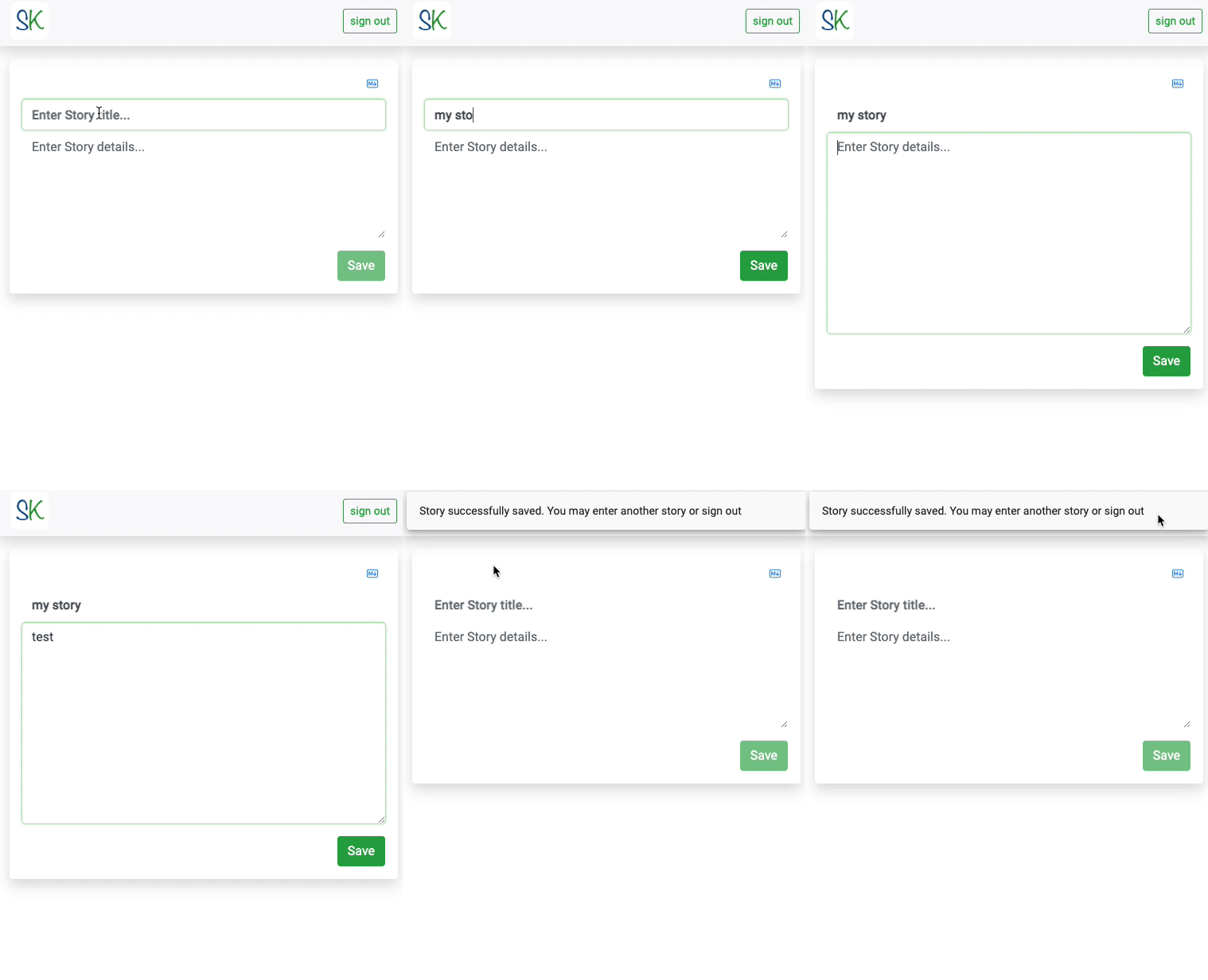
StoryKeeper can be used in "basic mode" for one-off surveying/story capture purposes, allowing a generic user account to be used by all survey participants.&#x20;

When in this mode the only option available to the user is to enter a story title and details and save the story. They will not see the "My Stories" list.&#x20;

After saving their story a popup notification will appear saying that they can enter another story or logout.

<figure><img src="https://i.gyazo.com/837958fcc364e1f0e3e21656bedb7b88.gif" alt="" width="375"><figcaption></figcaption></figure>

If you activate this basic mode for a user account we will provide you with further information so you can then access and publish the saved stories from that account.


# Settings

Access the settings view by clicking your username (top right of the app), and then select "settings" from the drop-down menu. Then you can:

* set your public name (if you want this to be different from your username when publishing content to a WayFinder canvas)
* set your geographic location (although note that this is a legacy feature and largely redundant now that [location can be set](/apps-and-tools/storykeeper/create-a-story/geo-location) specifically for each story)
* create user lists (groups), which enable you to quickly assign viewing rights to specific stories/media for all the users on a list.
  * NOTE that **StoryKeeper usernames** need to be entered, NOT public names as they may appear on a WayFinder canvas...for example "john-smith" is John's StoryKeeper username, whilst "johnny" is his public name that appears on WayFinder canvases. Therefore "john-smith" must be entered into the user list
  * you can also duplicate lists, which is a handy way of creating "sub-lists" from an existing (larger) list of users


# Syncing Between Devices

Any time you create/edit/delete stories or media in StoryKeeper on one device (or browser), those changes should automatically synchronise when accessing StoryKeeper on another device.&#x20;

The most common use-case here is when you are "out in the field" using StoryKeeper on your phone and might quickly enter a short story or observation, perhaps also uploading a photo to your media library. When you return to your home or office where StoryKeeper is open on your laptop browser, you should see the story and media already synced and available.

If you need to open or reload StoryKeeper on another device, it may take a few moments for the sync to occur, and you will see a green spinning circle alongside the "My Story/Media" headings.

* \***IMPORTANT**\*!!! Please wait for sync to complete before interacting with the app. If you have to login to the app first, this sync process may take up to 30 seconds.


# Offline Functionality

StoryKeeper has some (limited) offline functionality

if you already have StoryKeeper open and are logged in...

* you can create/edit/delete stories whilst offline and they will [sync](/apps-and-tools/storykeeper/syncing-between-devices) when you come back online\*\*. However...
* you CANNOT (re)load the StoryKeeper app or login whilst you are offline - it must already be open and logged in
* you CANNOT upload media, although you can edit existing media, such as changing the name or viewing rights

\*\* at times StoryKeeper will not automatically sync when coming back online, and will require a refresh/reload. There is also a [known issue related to this](/apps-and-tools/known-issues#syncing-storykeeper-after-being-offline)


# Release Notes

**Version 3.8.0 (07.07.24)**

* pasting a youtube link into a story automatically generates a WayFinder (Kumu) shortcode for that youtube video
* external image links can now be used for cover images
* UI/UX
  * the checkbox to send a publish notification now sits just below the publish button (for both single and batch publishing)
  * story-viewer (displays protected content in embedded popup window on a WayFinder canvas)
    * story title is now displayed
    * now renders youtube videos and external images
    * improvements to text layout, size and colour
* Bugs & Fixes
  * story list publishing icons not being greyed out when project is changed and has no Kumu maps associated with it
  * error being thrown on audio upload related to function timeout

**Version 3.7.0 (08.05.24)**&#x20;

* Notifications 🥳
  * when publishing content to a WayFinder canvas, a notification will be sent/broadcast (or user can choose not to send)
  * other StoryKeeper users who are associated with that canvas will receive a notification indicator in the top navigation bar of the app
    * user can activate 'do not disturb' mode to prevent notification indicators from appearing
  * the notification drop-down menu displays the name of the canvas(es) and time elapsed since content was last published to it
* 'description' can now be added to media items (and searched for by that description)
* can now add geo-location to content when using StoryKeeper in [Basic mode](/apps-and-tools/storykeeper/basic-mode)
* UI/UX
  * 'publish to wayfinder' menu label now also includes content type and canvas name
* Bugs & Fixes
  * issues around markdown formatting and legacy convention for assigning content type

**Version 3.6.0 (05.04.24)**&#x20;

* screen recordings are now converted to a video format (mp4) that is cross-browser compatible (beta)
* Bugs & Fixes
  * batch publishing was not assigning correct content type and cover image

**Version 3.5.0 (25.11.23)**&#x20;

* projects can be configured with custom content types, in addition to the existing "core" types&#x20;
  * types can have a 'template' that pre-populates the 'details' text field when that type is selected
  * types now also have default cover images for publishing (if the user does not select their own cover image - see next feature)&#x20;
* user can select a cover image from their media library when publishing a story (or other content types)&#x20;
* the default view setting for a canvas can be "locked" (admin feature)&#x20;
* UI/UX&#x20;
  * the selected type is signified with a 'tick' in the types drop down list (rather than the '##type' convention at the top of the 'details')&#x20;
  * spinner with 'sync in progress' displayed above story list when app first starts - disappears when stories have finished syncing&#x20;
* Bugs & Fixes
  * selection to publish anonymously is saved with story rather than needing to be (re-)selected upon each publication

**Version 3.2.8 (09.11.23)**

* Bugs & Fixes
  * connection details not being cleared when a connection is removed

**Version 3.2.7 (08.11.23)**

* stories now sorted by the date they were last updated (rather than created)
* UI/UX
  * projects and media drop-downs are now scrollable and don't go past the bottom of the screen&#x20;
* Bugs & Fixes
  * story viewer "hanging" on the loading spinner if there was no content in the story

**Version 3.2.6 (10.02.23)**

* user can assign location to a story (beta)

**Version 3.2.5 (31.01.23)**

* location data (if provided by the user) included when exporting a 'profile' to any canvas - previously this was only the case when exporting to a geo map/canvas
* Bugs & Fixes
  * UI freezing on login

**Version 3.2.4 (30.01.23)**

* media storage quotas can be adjusted per user
* UI/UX
  * warning shown to user when deleting media that has been inserted into a story
  * media storage quota remaining is now also displayed as a %
* Bugs & Fixes
  * media storage usage not being calculated across all projects

**Version 3.2.3 (17.01.23)**&#x20;

* stories and media can be shared with specific other SK users when viewing access is set to 'project' - previously this was only possible when access was set to 'personal'
* UI/UX
  * generating and copying a media link to clipboard now just copies the plain url (rather than markdown format)
  * 'sharedWith' is now multiline and does not overflow width of modal
  * a link to Kumu's markdown guide is shown in story-manager view
* Bugs & Fixes
  * duplicating usernames that have already been added to 'sharedWith' when populating from a user list

**Version 3.2.2 (29.12.22)**

* UI/UX
  * warning shown to user when deleting a story that has been exported to Kumu
  * projects now ordered alphabetically in project list dropdown
  * clearer option for publishing (exporting) to WayFinder (Kumu) from dropdown
  * button and padlock icon displayed in on a WayFinder canvas for links to stories that have viewing restrictions
* Bugs & Fixes
  * media list in story manager was not displaying "(personal +)" when it should

**Version 3.2.1 (24.10.22)**

* media is now embedded and displayed in story viewer
* option to select 'Question' from the "type" dropdown in story manager

**Version 3.2.0 (18.10.22)**

* UI/UX
  * stories in story list have visual indicators of status in relation to batch exporting
  * layout tweaks to story list, search and batch export

**Version 3.1.9 (15.10.22)**

* a story can only be exported to a single canvas (this may change in future)
* user icon displayed when 'profile' type selected and no profile pic
* Bugs & Fixes
  * inserted drawings not being assigned to a project(s)

**Version 3.1.8 (13.10.22)**

* Bugs & Fixes
  * @mentions being duplicated again
  * exporting a profile pic when "all" projects context

**Version 3.1.7 (07.10.22)**

* search stories by title AND body (previously just title)&#x20;
* UI/UX
  * canvas selection and access settings now displayed in same modal
  * canvas description now displayed when hovering over a canvas title in the canvas list
* Bugs & Fixes
  * convert types, hashtags and mentions to lowercase when exporting

**Version 3.1.6 (05.10.22)**

* UI/UX
  * enhanced UX when authorising adding/removing of a connection

**Version 3.1.5 (03.10.22)**

* WayFinder Canvas lists are able to display a canvas title rather than the url of a Kumu map
* can define order of canvases in the list
* each canvas has a default view access
* canvas list is specific to a project and changes when active project changes
* user can set their geo-location (only used when exporting to a Kumu geo map)
* Bugs & Fixes
  * removing a story from Kumu
  * showing/hiding export options

**Version 3.1.0 (23.09.22)**

* create user lists (for populating user-specific access to stories/media)
* re-assign a story/media to a specific project, or "all", when user belongs to multiple projects
* check if media is linked/referenced in any stories
* Bugs & Fixes
  * media list in story manager not being updated when active project selection changes
  * logic for setting a general 'profile pic' when user belongs to multiple projects

**Version 3.0.5 (21.09.22)**

* change to setting of viewing access rights for media (now the same as for stories)
* UI/UX
  * total number of stories now displayed above the story list

**Version 3.0.1 (19.09.22)**

* UI/UX
  * layout and font styling improvements to story-viewer
* Bugs & Fixes
  * batch exporting of non-public stories

**Version 3.0.0 (12.09.22)**

* a user can now be assigned to multiple projects
* a user assigned to multiple projects can now choose to work in a specific project context, and that context will be synced wherever StoryKeeper is open/accessed
* UI/UX
  * further optimisation of Kumu import (speed and reliability)
* Bugs & Fixes
  * checking for duplicates when saving export name - wasn't checking against existing usernames

**Version 2.8.5 (05.09.22)**

* select from a list of kumu maps to export to when exporting single or multiple stories (beta)
* Kumu maps now have default access rights based on map name
* Bugs & Fixes
  * positioning of 'in progress' spinner when exporting a new story
  * popup hints/help in story-manager use wording that matches the "type" (story, reflection, profile etc)

**Version 2.8.0 (24.08.22)**

* set viewing access rights when exporting a story to Kumu (beta)
* media can now be shared with StoryKeeper users outside of the media owners project
* Ui/UX
  * clearer indication and distinction of stories that have been exported to Kumu and changes/updates since exporting
* Bugs & Fixes
  * drawing links not being inserted in correct position
  * stories already exported to Kumu were still able to be marked as 'private'
  * users 'export name' being allowed to have whitespaces in it

**Version 2.7.1 (14.08.22)**

* remove a connection from Kumu
* Bug Fixes
  * potential for duplicates in hashtags and/or 'mentions' when exporting to Kumu
  * story titles with illegal characters causing issues in story-connector when passed from Kumu

**Version 2.7.0 (12.08.22)**

* remove a story from Kumu
* Bug Fixes
  * all stories being marked as 'exported' when only a single story is exported
  * corrected location of 'in progress' spinner when exporting a single story

**Version 2.6.9 (09.08.22)**

* UI/UX
  * playback of uploaded/recorded audio is prevented until transcoding has completed

**Version 2.6.8 (08.08.22)**

* uploaded/recorded audio is transcoded to 'mp3' to maximise cross-browser playback compatibility
* two options when recording via webcam on desktop - capture a 'picture' or 'video-audio' (removed 'video only' & 'audio only' options)

**Version 2.6.7 (03.08.22)**

* record audio in media manager (beta)
* a heavily restricted mode (UI) where a user can only enter and save a story - that's it!

**Version 2.6.6 (24.07.22)**

* Kumu 'soft links' are created whenever a @user is mentioned
* UI/UX
  * media links are now inserted into story based on cursor position

**Version 2.6.5 (18.07.22)**

* user can now set/change their 'export name' in settings
* user has option to set media item as their profile pic when saving in media manager
* UI/UX
  * improvements to media manager
  * users profile pic is displayed when 'profile' type is selected in story manager
* Bug Fixes
  * media upload being disabled when it shouldn't be

**Version 2.6.1 (15.07.22)**

* UI/UX
  * confirmation popup when deleting a story
* Bug Fixes
  * added 'hide author' checkbox when exporting a single story

**Version 2.6.0 (12.07.22)**

* create connections (through Kumu lightbox)
* can now export a single story (the one being created/updated)
* csv export will now export all the users stories regardless of previous exports or privacy setting on each story
* UI/UX
  * "type" drop down & other changes to story-manager UI layout
  * an exported profile's title defaults to user's name
  * number of stories to be exported to Kumu is displayed above export button

**Version 2.5.7 (04.07.22)**

* export a "profile" type along with a profile pic from media library
* displays app version number when clicking on the 'SK' logo
* Bug Fixes
  * rendering issue when media is private

**Version 2.5.6. (12.12.21)**

* the 'type' can be set to something other than the default of 'story' by using '##type' on the first line of the story body

**Version 2.5.5 (11.06.21)**

* when exporting stories, the authors name can be different to their username (requires an admin to set this on the backend)
* UI/UX
  * displays app version number when hovering over the 'SK' logo
  * tweaks to branding and wording to reflect integration with WayFinder Platform

**Version 2.5.4 (29.05.21)**

* tracking and display of media storage usage and quota
* user agreement is displayed and must be accepted before using the app for the first time
* added links to policy documents at top of sign in screen

**Version 2.5.3 (25.05.21)**

* Bug Fixes
  * media (video) playback was timing out too quickly

**Version 2.5.2 (25.05.21)**

* Bug Fixes
  * media upload progress not being displayed

**Version 2.5.1 (18.05.21)**

* tweaks to Kumu integration, including ability to categorise a story as a 'reflection'

**Version 2.5 (12.05.21)**

* Progressive Web App (PWA) functionality added

**Version 2.4 (11.05.21)**

* mention other users with '@' in story body and this will be imported into Kumu as a field called 'MentionedUsers'
* Bug Fixes
  * when adding hashtags the export had a '|' after the last hashtag, creating a 'null' tag when importing into Kumu

**Version 2.3 (05.05.21)**

* private media can be shared with specific users
* stories can be exported anonymously (username is not assigned to 'author')
* UI/UX
  * improvements to sizing and layout of media in media viewer
  * story detail area increases when in focus
  * tooltips on buttons and inputs (desktop only)
* Bug Fixes
  * if app had been idle for a while, new stories/media were not being displayed in list after saving

**Version 2.2 (30.04.21)**

* webcam and screen recording available (desktop only)
  * beta stage of development with inconsistent functionality across browsers
* 'date created' displayed in story and media lists
* automated story export to Kumu
* hashtags in story body will be imported to Kumu as tags
* when a previously exported story is edited and saved, it is able to be exported again
* select and insert media links directly into stories whilst in story manager UI
* rename media files

**Version 2.1 (20.04.21)**

* improved media upload functionality

**Version 2.0 (31.03.21)**

* media upload & management
* media viewer
* drawing
* search bar for stories and media

**Version 1.0 (12.03.21)**

* story CRUD
* Kumu csv export


# WayFinder Platform

The core of the WayFinder Platform is a digital "canvas", where content can be positioned and visualised in many powerful ways to enable reflective practice, sensemaking, ideation, discovery and more - processes that cohere with the over-arching [philosophy of "wayfinding"](https://www.wayfinders.network/blog/philosophy/).

A strength is the ability to quickly switch contexts, from a personal view that has only your content, to a shared/collaborative perspective that displays other peoples content in relationship to your own.

The innovation here is a user interface that moves away from restrictive vertical timelines as found in social media feeds, blogs and group chats; to something that allows many entry points and quickly reveals themes, patterns and connections. Maggie Appleton has described this as ["topography over timelines"](https://maggieappleton.com/garden-history#1-topography-over-timelines).

In this sense the platform is breaking new ground in social, knowledge and sensemaking systems.

With a strong focus on stories (hence the [StoryKeeper app](/apps-and-tools/storykeeper)), exploring a canvas will often feel like sitting around a digital campfire and reading/listening/watching the stories people have shared...

<figure><img src="https://4069604972-files.gitbook.io/~/files/v0/b/gitbook-x-prod.appspot.com/o/spaces%2FLLZ7p94OHguiKBpQrfag%2Fuploads%2FdLHP2lwu0Abq9Qiz3ytt%2FScreen%20Shot%202024-04-08%20at%205.09.07%20pm.png?alt=media&amp;token=249d11a0-eb68-4fc2-a9b1-2a9768c0871e" alt=""><figcaption><p>An example of a WayFinder "canvas" with stories, reflection, questions and personal profiles depicted using various iconography</p></figcaption></figure>

The following sections provide more detail regarding how you can interact with a canvas, as well as the options for designing and customising canvases to your requirements.


# Navigating a Canvas

Learning how to navigate a canvas and interact with the content is best exemplified through a demo - watch the full video below, or just specific sections that are listed and linked underneath the full video...

{% embed url="<https://www.youtube.com/watch?v=H58oEjq-yWo>" %}

[0:00](https://www.youtube.com/watch?v=H58oEjq-yWo\&t=0s) intro to a canvas

[0:43](https://www.youtube.com/watch?v=H58oEjq-yWo\&t=43s) from vertical scrolling to canvas interfaces

[2:05](https://www.youtube.com/watch?v=H58oEjq-yWo\&t=125s) displaying the details of content on a canvas

[2:50](https://www.youtube.com/watch?v=H58oEjq-yWo\&t=170s) hiding and showing the left side panel

[3:18](https://www.youtube.com/watch?v=H58oEjq-yWo\&t=198s) filtering by profiles - who are the **humans** around the digital campfire?

[4:20](https://www.youtube.com/watch?v=H58oEjq-yWo\&t=260s) more filtering options - author, @mentions

[5:35](https://www.youtube.com/watch?v=H58oEjq-yWo\&t=335s) accessing protected content

[6:10](https://www.youtube.com/watch?v=H58oEjq-yWo\&t=370s) further filtering options - #hashtags, date

[7:05](https://www.youtube.com/watch?v=H58oEjq-yWo\&t=425s) clustering - author, @mentions, @hashtags

[8:50](https://www.youtube.com/watch?v=H58oEjq-yWo\&t=530s) zooming in and out of a canvas

[9:12](https://www.youtube.com/watch?v=H58oEjq-yWo\&t=552s) bringing content into "focus" mode

[10:20](https://www.youtube.com/watch?v=H58oEjq-yWo\&t=620s) navigating using the browsers forward and back arrows

[11:10](https://www.youtube.com/watch?v=H58oEjq-yWo\&t=670s) viewing media links


# Making Connections

Hover over any content on the canvas, and at the bottom of the popup panel will be green 'connect from' and 'connect to' buttons. Use these to make a connection (link) between two items on the canvas.

<figure><img src="https://4069604972-files.gitbook.io/~/files/v0/b/gitbook-x-prod.appspot.com/o/spaces%2FLLZ7p94OHguiKBpQrfag%2Fuploads%2FWG8B4XO6u5HSEEcOZ5iV%2FScreen%20Shot%202024-04-08%20at%205.40.42%20pm.png?alt=media&amp;token=61829217-cb5f-4ac6-bb9f-d81e9f4aaf75" alt="" width="561"><figcaption></figcaption></figure>

Note: clicking these buttons will open an embedded window and may require you to login to StoryKeeper to verify that you have permission to make connections on the canvas.

Once both a "from" and "to" have been selected, you are then able to add any details you want (including #hashtags and @mentions), optionally select to hide your name and then confirm the connection...

<figure><img src="https://4069604972-files.gitbook.io/~/files/v0/b/gitbook-x-prod.appspot.com/o/spaces%2FLLZ7p94OHguiKBpQrfag%2Fuploads%2FqOwYiiufReBtoC4aB6xm%2FScreen%20Shot%202024-04-08%20at%205.44.04%20pm.png?alt=media&amp;token=ae596581-b217-4190-a7a8-4a88ad98fba5" alt=""><figcaption></figcaption></figure>

After a few seconds you should see a message saying the connection was successful and that it will be displayed the next time you refresh the WayFinder canvas web page. You can then close the window by clicking anywhere on the canvas.

### Removing a Connection

You can remove any connections you have made by hovering over the connection and clicking the red "remove connection" button at the bottom of the popup panel. As with making a connection, this will open an embedded window where you can confirm that you want to delete the connection (or be shown a message that you do not have permission to do so if you are trying to remove a connection that was created by another user)

### Updating Connections

At this point in time there is no direct way to edit/update an existing connection. Instead, you need to repeat connecting 'to' and 'from' the two items on the canvas and enter/update any text you want to appear in the details field (the details field will be blank, so you will need to copy n paste text from the existing connection if you still want to use that). Once the updated connection is made it will overwrite the existing connection.

### Connection Directions

Although it can be activated, canvases by default do not display a connection arrow to depict the direction of the connection, ie the content being connected 'to'. It is only possible for a single user to create one connection in a certain direction between two items on the canvas, ie Item A --> Item B. You can, however, create another connection in the opposite direction between the same two items, ie Item B --> Item A.

To be clear, multiple connections can be made between two items in the same direction by **different** users. The users name will appear on their connection (see screenshot below).

### Connection Colours

If necessary, canvases can be customised such that connections that have been made by users can be distinguished from connections that are automatically generated when "clustering". In the example screenshot below, the violet-coloured connection has been created by Tim (with Tim's name being overlaid on the connection), whilst the grey connections are automatically generated when clustering content containing the hashtag ''#coaching"...

<figure><img src="https://4069604972-files.gitbook.io/~/files/v0/b/gitbook-x-prod.appspot.com/o/spaces%2FLLZ7p94OHguiKBpQrfag%2Fuploads%2FNq62qmNCaMHsHuIuK6FY%2FScreen%20Shot%202024-04-09%20at%208.50.07%20am.png?alt=media&amp;token=2ccf176a-7702-4264-aab7-fc640806e819" alt="" width="416"><figcaption></figcaption></figure>


# Sharing Content Links (URL's)

When you click on content on the canvas, the URL in the address bar of the browser will now have the ID for that content appended to it. You can now share that URL such that when other people (or you) load the canvas web page, the content icon will be selected (and centred) on the canvas, and content details displayed in the left side panel...

This becomes more powerful when you **click and hold** on content on the canvas to put it into "focus" mode...now only that piece of content and its connected content are displayed. If you now copy the URL and use it to load a canvas, only that piece of content and its connected content will be displayed on the canvas - this is really useful when a canvas becomes heavily populated with content, which may overwhelm a first-time user who is unfamiliar with it.

NOTE: you can increase the "links in the chain" to display connections further out/in by using the up/down arrows on the right edge of the canvas,  about half-way down (see screenshot below). Click on the target icon in between the arrows to clear [focus mode](https://www.youtube.com/watch?v=H58oEjq-yWo\&t=552s) and re-display all content on the canvas...

<figure><img src="https://4069604972-files.gitbook.io/~/files/v0/b/gitbook-x-prod.appspot.com/o/spaces%2FLLZ7p94OHguiKBpQrfag%2Fuploads%2FjUirI5Qhv0Ef2E0igbFM%2FScreen%20Shot%202024-04-09%20at%2012.08.29%20pm.png?alt=media&amp;token=26b1ce3e-df67-4ab7-846a-5ae22cb3294d" alt=""><figcaption><p>focus buttons that appear on the far right of a canvas</p></figcaption></figure>


# Canvas Layouts

In addition to the default canvas layout and interactivity as [shown here](/apps-and-tools/wayfinder-platform/navigating-a-canvas), it is possible to customise the layout and functionality of a canvas to serve specific purposes. At the moment there are 3 customised layouts that can be setup:

* [Principles-Based canvas](/apps-and-tools/wayfinder-platform/canvas-layouts/principles-based)
* [Geo canvas](/apps-and-tools/wayfinder-platform/canvas-layouts/geographic-map)
* [Visual Frameworks canvas](/apps-and-tools/wayfinder-platform/canvas-layouts/visual-frameworks)


# Principles-Based

With the growing realisation that rigid plans are inadequate when tackling complex challenges and wicked problems, principles-based approaches are becoming common practice...these principles might emerge from theoretical/empirical research, and/or through the wisdom of elders.

Used well, principles provide guide-rails and reference points for people along their wayfinding journey. In the video below we briefly demonstrate how we can make those principles visually prominent on a canvas, and automatically connect stories and other content to them...

{% embed url="<https://www.youtube.com/watch?v=6_gatA2U-co>" %}


# Geographic Map

When stories and other content from StoryKeeper are published with location data, they can be displayed on a geographic map...a simple but powerful feature for place-based approaches and connecting with people in your locale.

{% embed url="<https://www.youtube.com/watch?v=M4f8MlPG300>" %}


# Visual Frameworks

The use of visual frameworks on a canvas are one of the WayFinder Platform's most powerful features. Watch the video below to get a sense of why this can be so valuable and how it works...

{% embed url="<https://www.youtube.com/watch?v=JPFAX24d4zA>" %}

As mentioned in the video, you will need to have host/curator rights for a canvas to map content against visual frameworks. This requires an additional login and configuration, so please [get in touch](mailto:info@wayfinders.network) with us to discuss the specifics.


# Further Guidance & Customisation

Through reading these docs and/or accessing a canvas, you may have noticed the URL refers to "Kumu.io" - this  is an extremely powerful visualisation platform that we have carefully customised to create the WayFinder Platform.&#x20;

Check out [Kumu's docs](https://docs.kumu.io/) for more insight into the possibilities, and then [get in touch](mailto:info@wayfinders.network) with us if you would like to discuss how we can customise your WayFinder canvas(es) to incorporate additional features and functionality.


# Private Canvases

It is possible to have canvases that are completely private, ie when someone goes to the URL for the canvas they will not see the canvas and have to login to [Kumu](/apps-and-tools/wayfinder-platform/further-guidance-and-customisation) first. However this comes at a further cost (as set by Kumu), so please [get in touch](mailto:info@wayfinders.network) with us to discuss this option.

We have carefully designed granular [viewing permissions for content](/apps-and-tools/storykeeper/story-and-media-viewing-permissions) that should cater for most use-cases without needing to activate a private canvas.


# Known Issues

### Blank screen when trying to add or connect stories through The WayFinder Platform

If the "embedded" window is blank when you try to add a story or make a connection between two stories, it likely means cookies need to be enabled for third parties/iframes (also see below for known issue with Safari).&#x20;

### Safari Web Browser

If using Safari, StoryKeeper has limited functionality when opened in the "embedded" window on The WayFinder Platform. It is best to open StoryKeeper in its own browser tab/window (or access the installed version if you have done so).

### Syncing StoryKeeper after being offline

On occasions a story that is created/updated in StoryKeeper **whilst offline** may not sync across your other devices when back online. If refreshing/reloading StoryKeeper on all your devices doesn't fix this, the best option is to create a new version of the story and copy the contents of the original story, and then delete the original. This new version should then sync across your other devices.